Install on WordPress.
Add Jarvis to your WordPress site in about 2 minutes — no coding required.
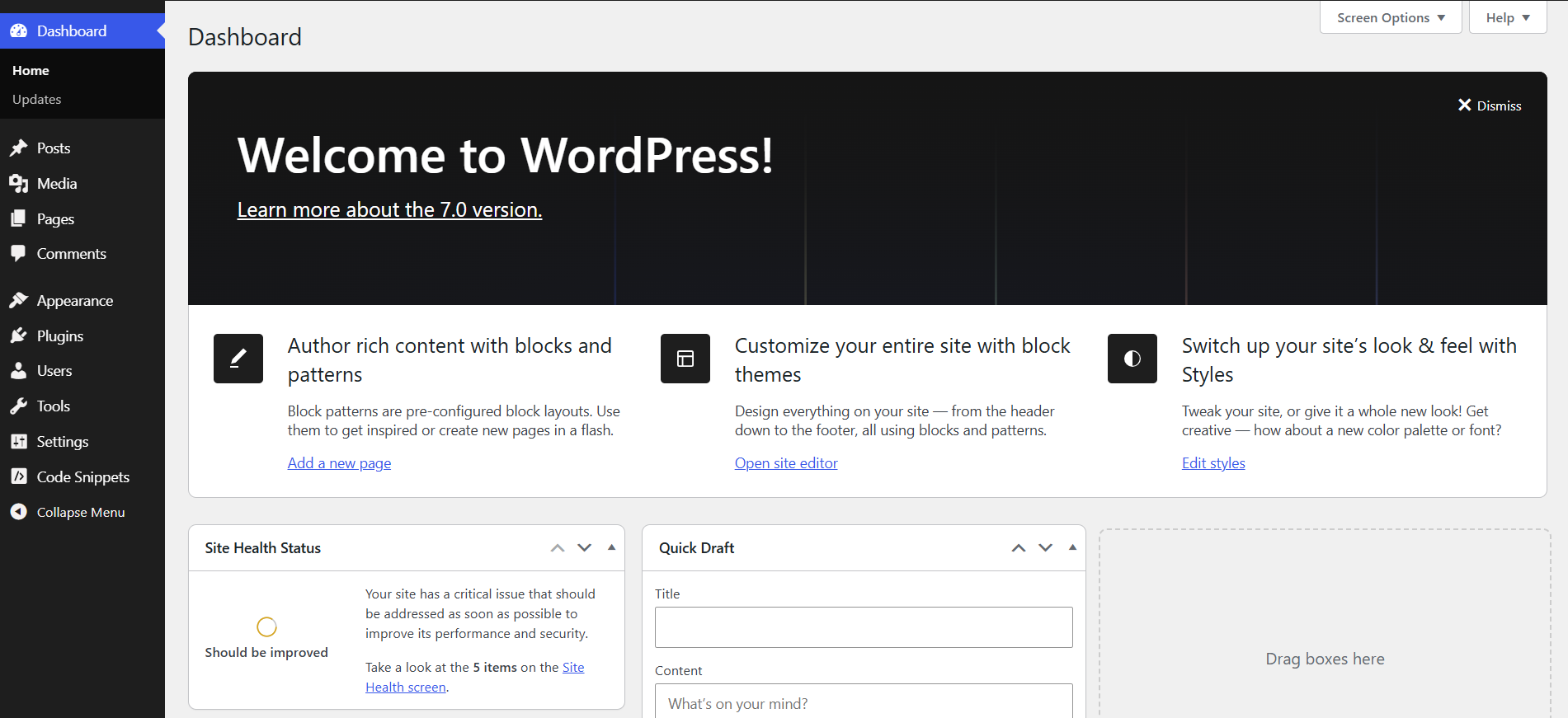
Log in to your site's admin area — that's the dashboard you see in the screenshot. From here we'll add a small free plugin that lets you paste a code snippet in the right place. No theme editing, no risk to your site.
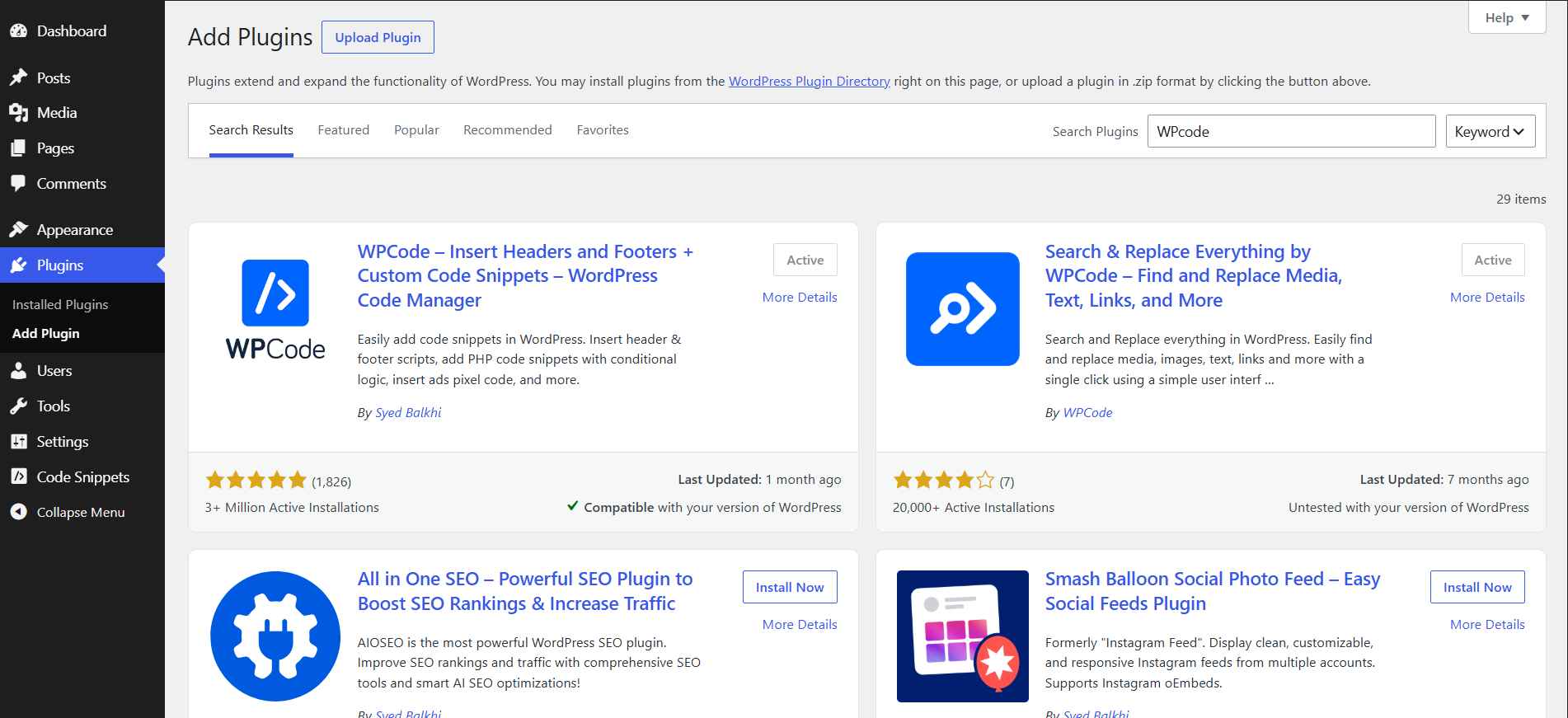
In the left sidebar, click Plugins → Add New. Type "WPCode" into the search box. Click Install Now on the first result (WPCode by Syed Balkhi), then click Activate. It's free and used on over 3 million sites.
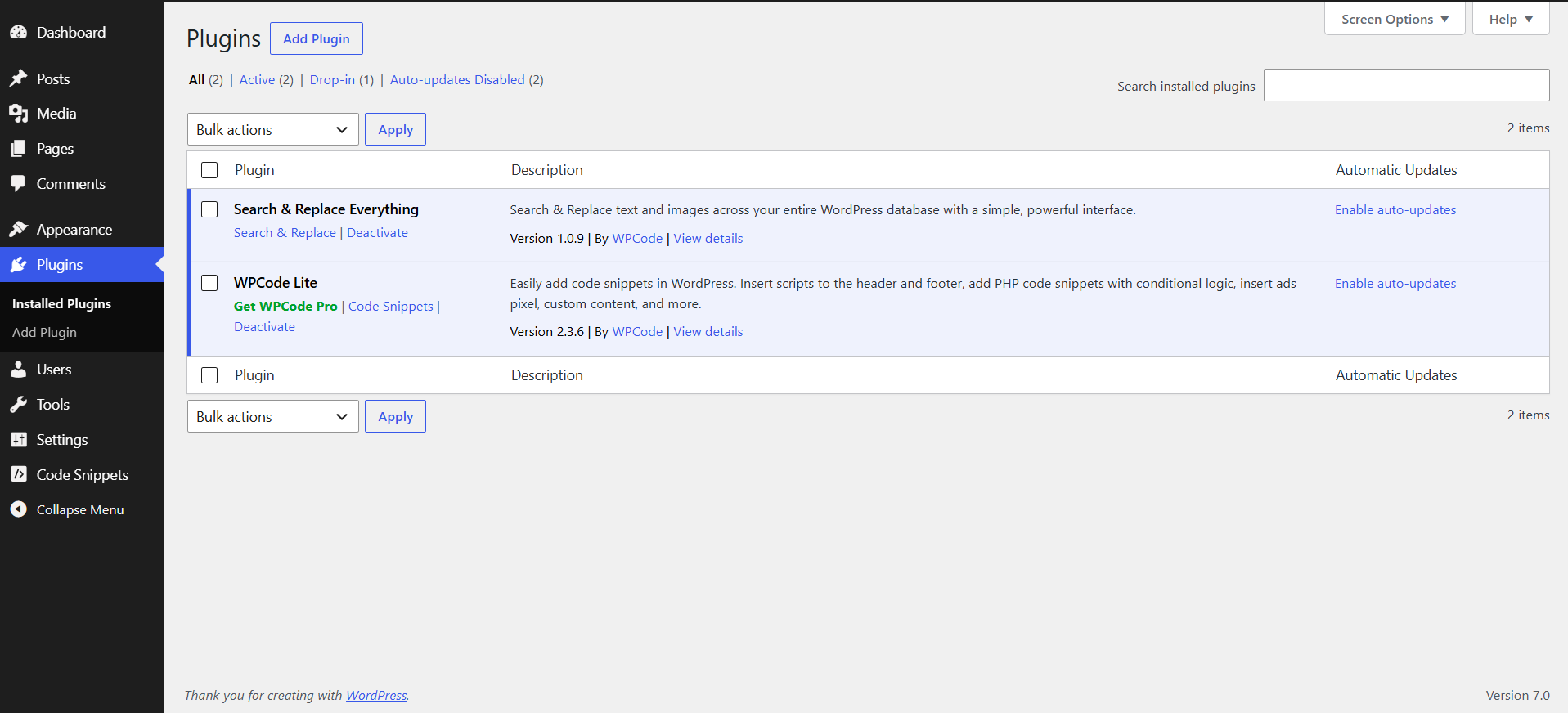
Your plugins page should now show WPCode Lite as Active. If you see this screen, you're good to move on.
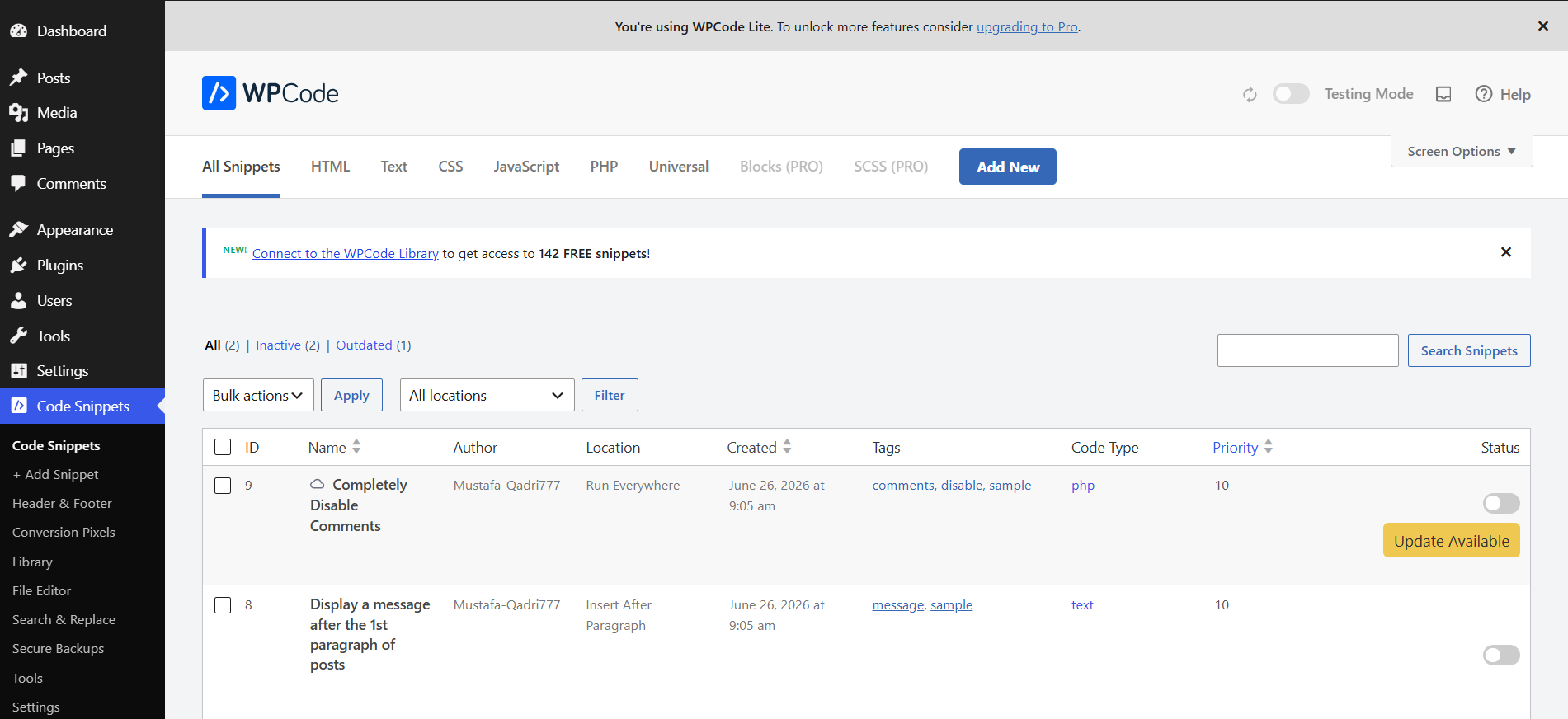
WPCode adds a new Code Snippets section to your left sidebar. Click it — you'll see a few sample snippets the plugin ships with. We don't need those; we want the Header & Footer area instead.
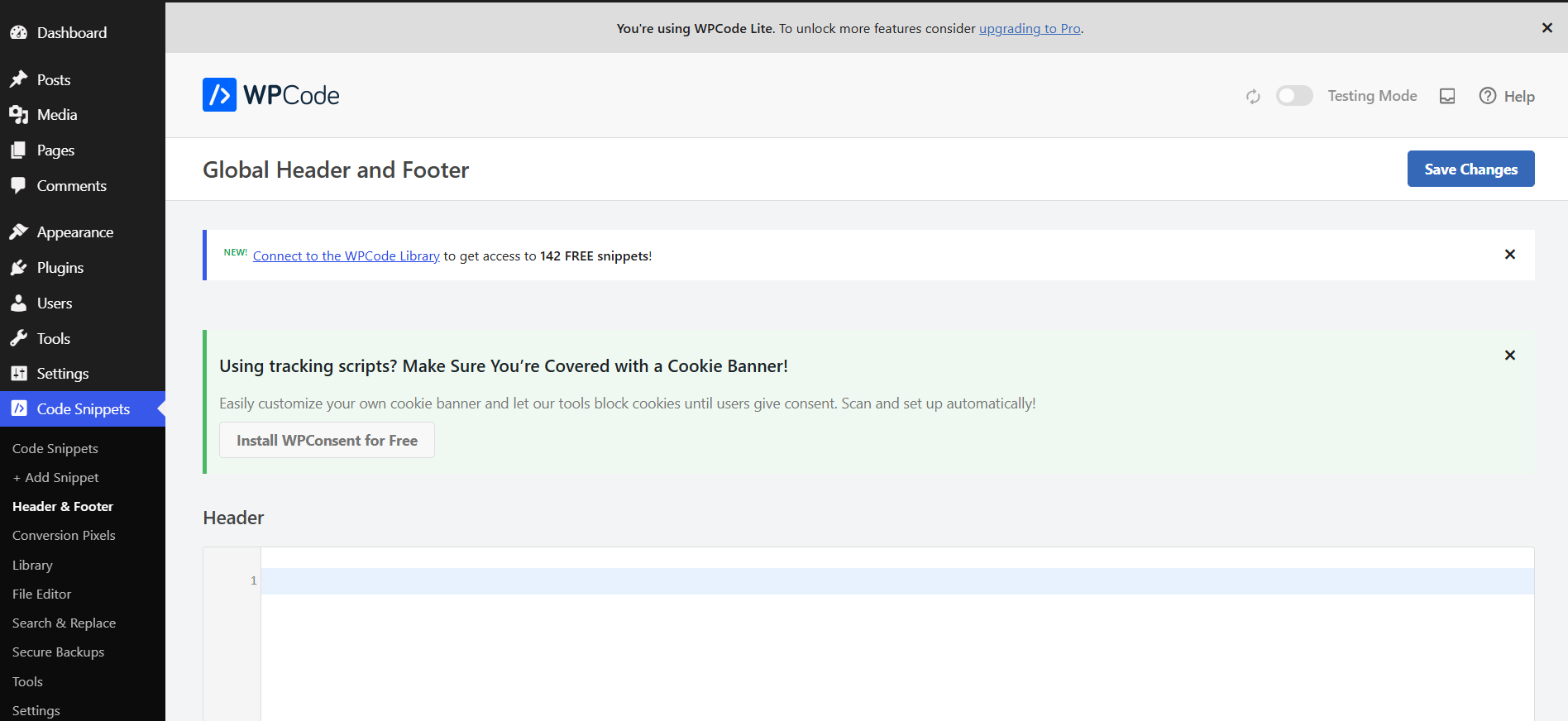
Under Code Snippets in the sidebar, click Header & Footer. This is where you paste Jarvis. The page has three boxes — Header, Body, and Footer — and we'll use the Footer one.
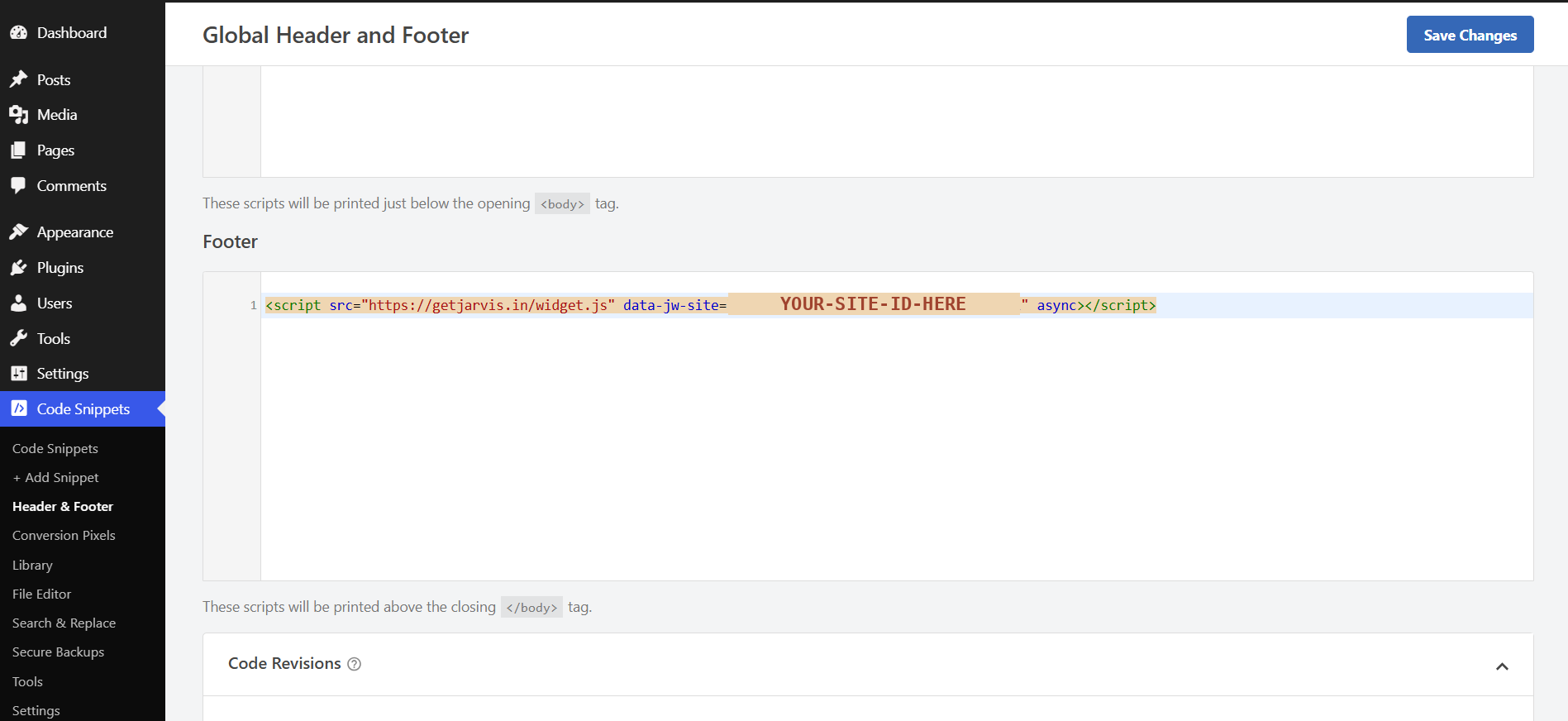
Copy your embed code from the Websites page in your Jarvis dashboard, then paste it into the Footer box (the one labelled "these scripts will be printed above the closing </body> tag"). Click Save Changes at the top-right. Your real code will have your own site ID where the screenshot shows YOUR-SITE-ID-HERE.
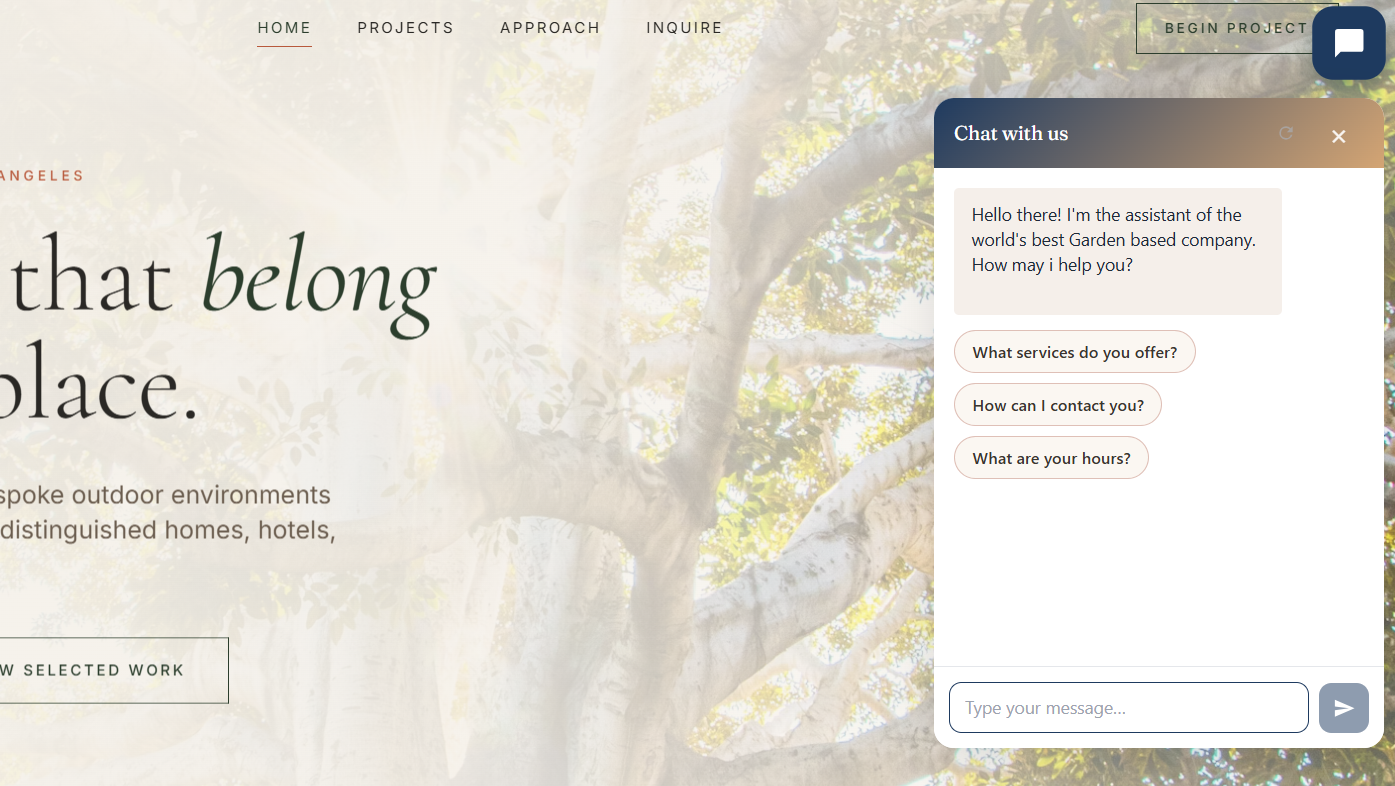
Open your live website in a new tab. The Jarvis chat bubble appears in the bottom-right corner. Click it to test — try one of the suggested questions. That's it. You're live.
Email jarvisforcontact@gmail.com — we'll tell you exactly where to paste it, or install it for you. Free during beta.