Install on Squarespace.
Add Jarvis to your Squarespace site in about 3 minutes — no coding required.
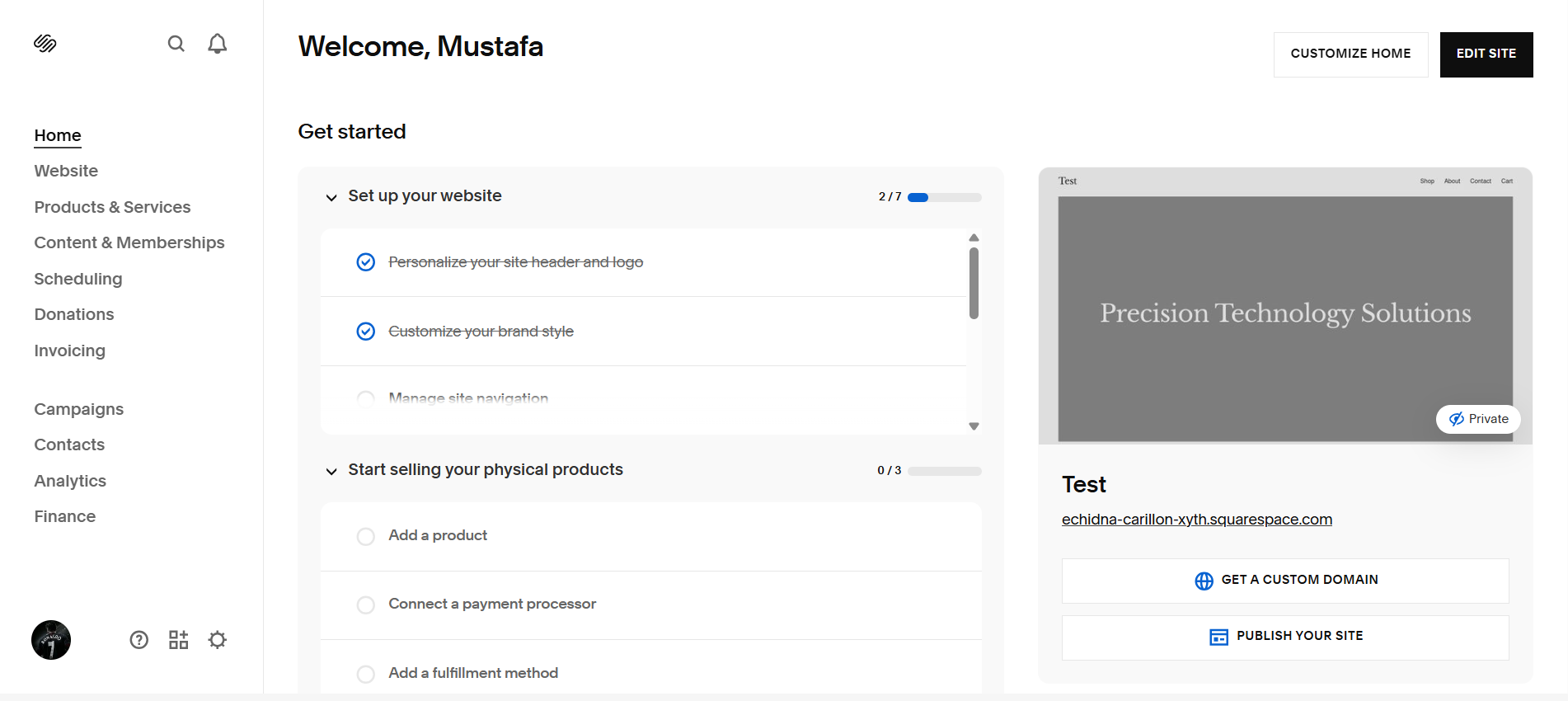
Log in at squarespace.com and open the site you want to install Jarvis on. You'll land on the Get Started overview. We're heading into the Website section next.
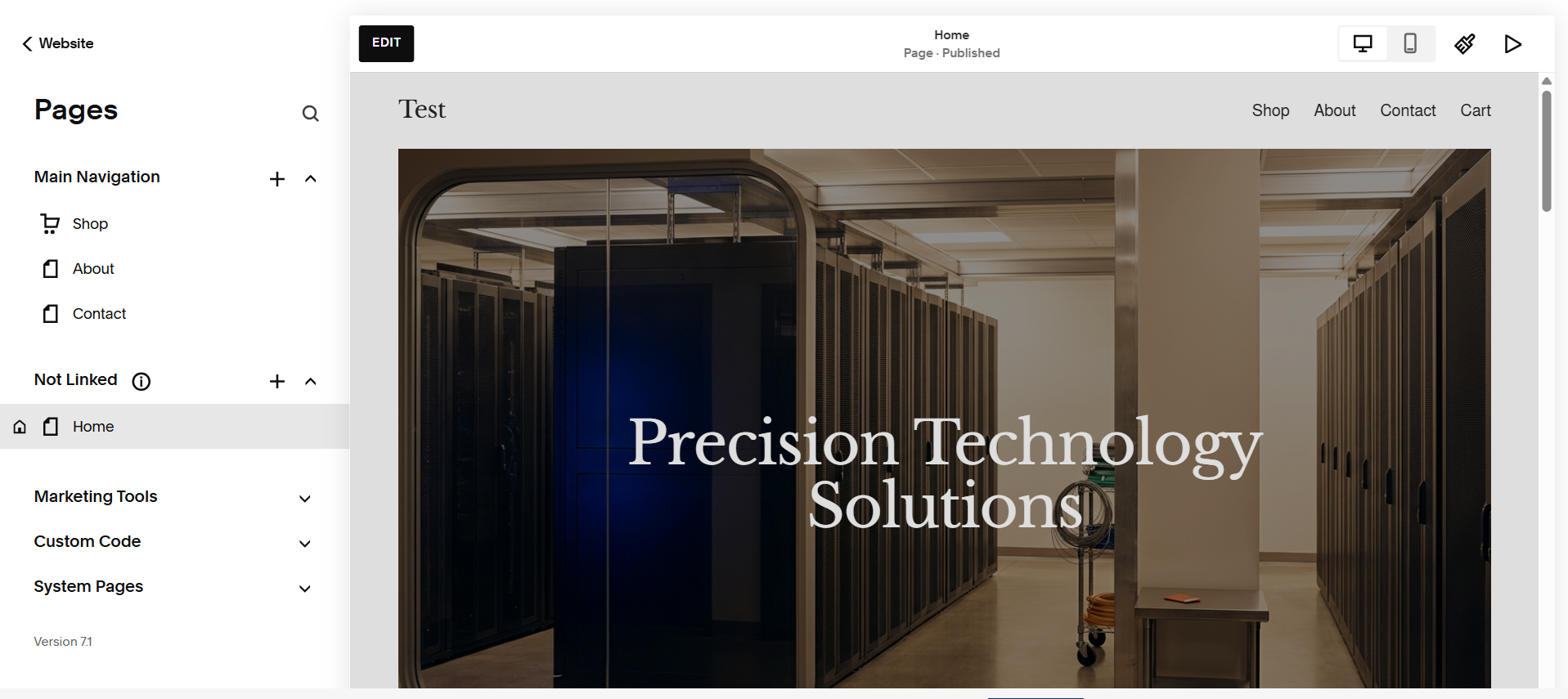
In the left sidebar, click Website. The Pages panel opens. Don't worry about the pages themselves — we're looking for the Custom Code menu that lives below them.
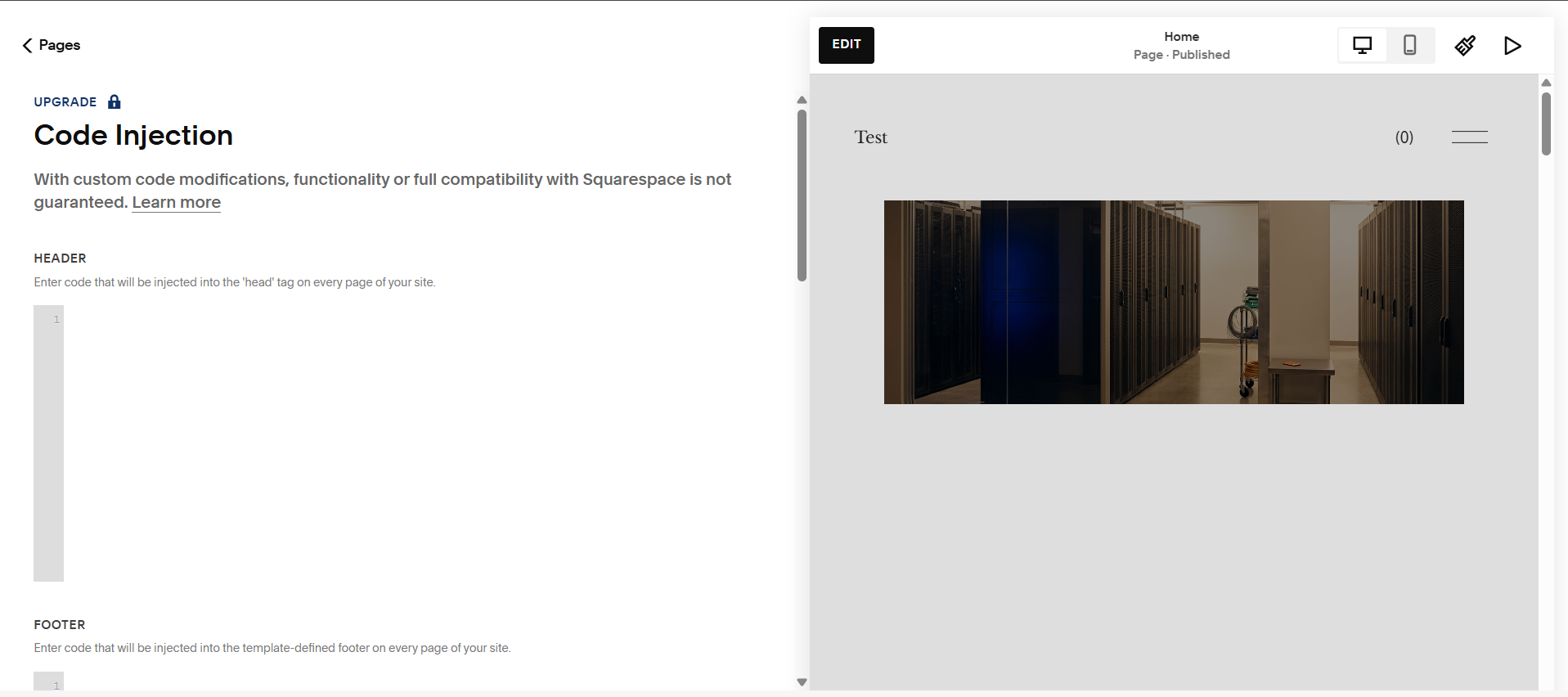
Scroll down in the left panel until you see Custom Code, then click Code Injection. You'll see fields for Header and Footer — these inject code into every page of your site.
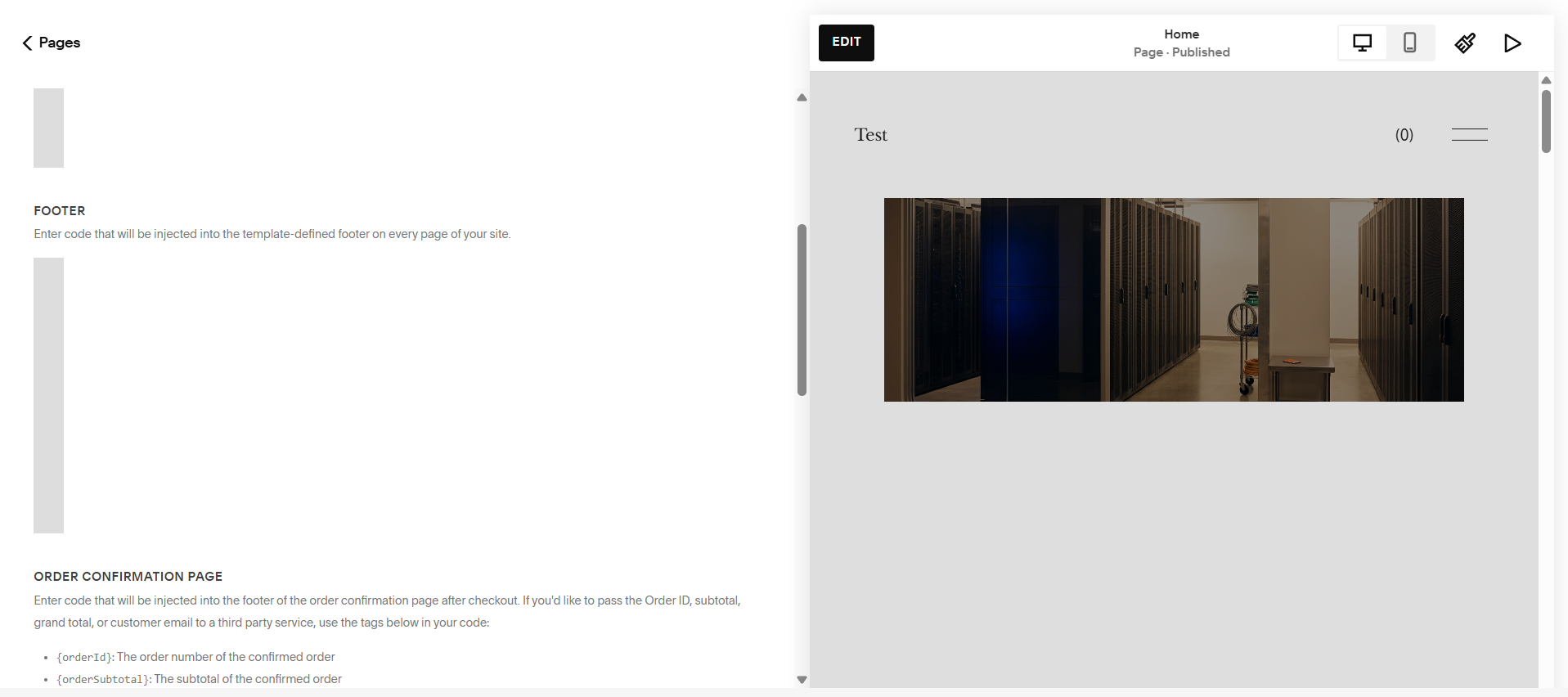
Below the Header section, you'll find the Footer field labelled "Enter code that will be injected into the template-defined footer on every page of your site." That's where Jarvis goes.
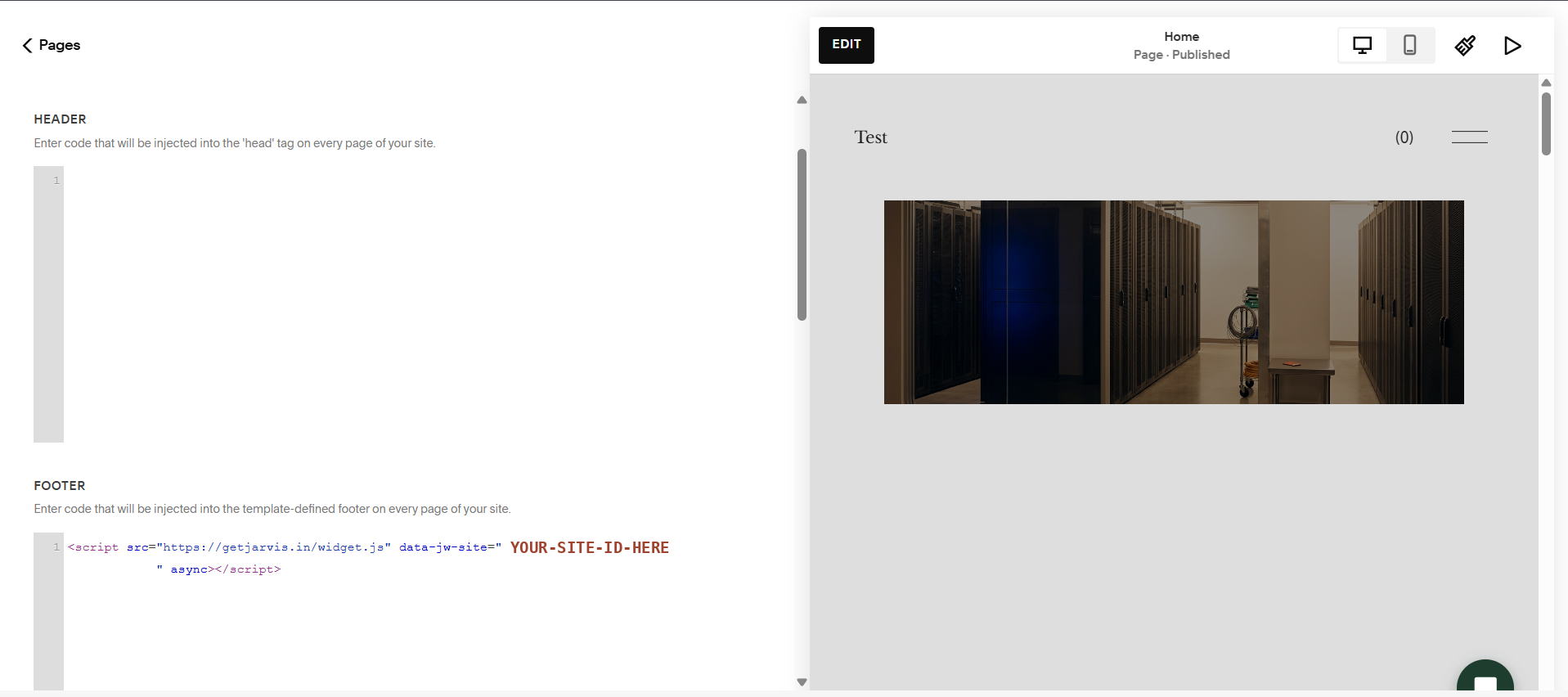
Copy your embed code from the Websites page in your Jarvis dashboard, then paste it into the Footer field. Click Save at the top-left. Your real code will have your own site ID where the screenshot shows YOUR-SITE-ID-HERE.

Open your live Squarespace site in a new tab. The Jarvis chat bubble appears in the bottom-right corner. Click it to test — try one of the suggested questions. That's it. You're live.
Email jarvisforcontact@gmail.com — we'll tell you exactly where to paste it, or install it for you. Free during beta.